· Fuzal
AssetMaster Web Update: Video Frames, Row Selection, and Easier Animation Editing
Recent AssetMaster improvements for video frames, row selection, frame cleanup, duplication, flipping, and collage imports, plus a look at upcoming image-...
AssetMaster started as a way to turn images into usable assets in the browser. The recent updates focus on the work between importing a source and exporting something you can actually use: extracting animation frames, selecting rows, correcting individual frames, and refining cutouts without starting again.
This update covers the features present in the live web build checked on September 21, 2026. Image-sequence and folder imports, together with new usage tips, are described separately below because they are implemented in the development source but are not yet in that deployed build.
Turn a video into animation frames
!AssetMaster Animation Studio and frame timeline
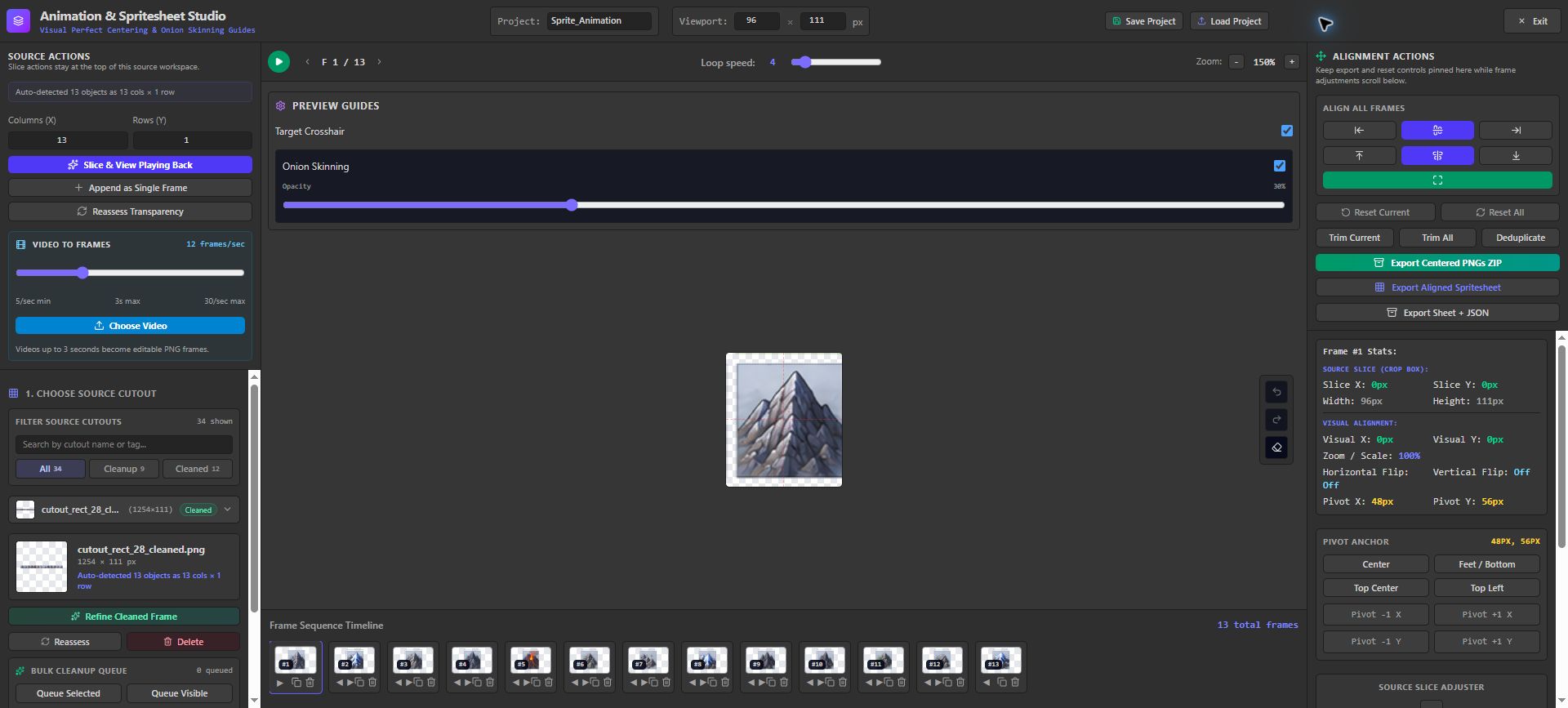
The live Animation Studio, with video import controls on the left, a preview and 13-frame timeline in the center, and alignment and export actions on the right.
Animation Studio now includes Video to Frames. You choose a capture rate in frames per second, and the app samples the video at that interval to create frames for editing.
For example, choosing 6 frames per second means a capture interval of roughly one-sixth of a second. It gives the control a concrete meaning: how densely to sample the source video. A higher rate creates more frames and more work for the browser, so a modest rate is a useful starting point for a short animation.
Once the frames are available, you can inspect them, adjust the animation, and continue through the existing export workflow. This is useful for turning a short motion reference into a sequence you can clean up and reuse.
Select whole rows immediately after uploading an image
The initial image workspace now detects horizontal rows and shows internal guides. Selecting near a guide creates a rectangular selection for a whole row, which you can save through the normal cutout flow.
This helps when artwork arrives as several horizontal strips in one sheet. It reduces repeated manual rectangle drawing while keeping the result compatible with the existing saved-asset workflow. The feature selects rows; it does not divide every row into individual grid cells. The quality of automatic detection still depends on how clearly the source separates its rows.
Make targeted changes to animation frames
Recent frame controls make small corrections easier:
- Duplicate a frame when you need another editable copy in the sequence.
- Flip an individual frame horizontally or vertically.
- Use a square selection eraser alongside freehand erasing for a more defined cleanup area.
- Remove unwanted entries with explicit delete controls.
These operations help avoid rebuilding a sequence just to correct one frame. Eraser positioning also accounts for the displayed frame geometry, including zoom and offsets, so the selection and the image use the same coordinate relationship.
Refine an already-cleaned frame
!AssetMaster background refinement workspace
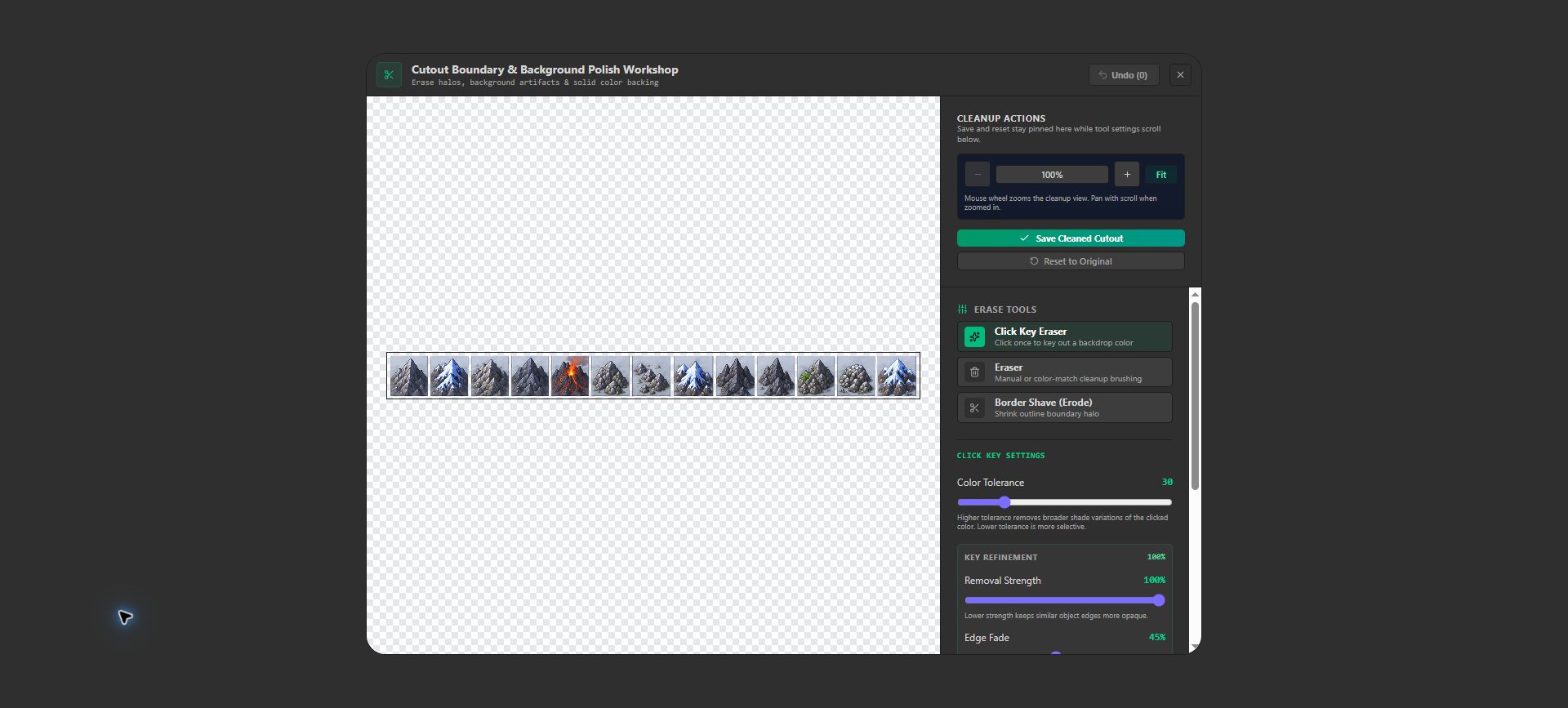
The background refinement workspace shows transparency alongside removal strength and edge controls.
Background cleanup is often an iterative process. A first pass removes the broad background, while a second pass addresses the edge or a small remaining patch.
Animation Studio exposes Refine Cleaned Frame for an asset that has already been cleaned. You can return to that saved result, adjust the cleanup, and continue working rather than creating a separate replacement by hand. Removal Strength and Edge Fade provide controls for balancing removal and edge softness.
Paste image files into a collage
Collage Studio's clipboard import now recognizes copied image files more consistently, including files whose clipboard metadata does not provide an image MIME type. Recognized files use the same import path as the file picker.
For a supported browser and clipboard combination, this means a copied image can become a normal collage layer with the usual placement and editing behavior. Browser clipboard access still determines what data the app receives, so copying an image file and copying a file path are not interchangeable.
Keep more space for the artwork
Compact controls reduce the amount of space occupied by toolbars, and Animation Studio offers a setting for the compact presentation. The aim is to leave more room for the frame and timeline while keeping familiar actions within reach.
Next: numbered image sequences and optional tips
The latest development source adds Choose Images and Choose Folder to Animation Studio. It sorts filenames naturally, so frame_2.png comes before frame_10.png, preserves transparent image content, and appends imported frames to the timeline. The timeline remains the source of export order.
It also adds a floating usage-tips panel that can be dismissed and remembers that choice. These two additions were not present in the live bundle checked for this article, so they should be treated as upcoming web features rather than controls you can already find there.
A practical workflow to try
Start with a short video or an image sheet. Extract frames or select a row, save the pieces you need, then use Animation Studio to duplicate, flip, or clean individual frames. Preview the sequence before exporting it.
The direction behind these updates is straightforward: make it easier to move from source material to reusable assets, with fewer repeated steps along the way. Try the current tools in AssetMaster.